
Import BPMN Diagrams

BPMN import converts BPMN 2.0 XML into independent native schemes. Review every conversion issue and save result before execution. Main Scheme Code overrides the first eligible process; other processes and inline dependencies have their own codes. Existing schemes are skipped unless overwrite is enabled. Saving is sequential and can partially succeed. Application actions, message handling, command restrictions, and timer configuration complete the integration.
Import BPMN diagrams through the Designer after registering BpmnPlugin: select Upload BPMN, choose the main scheme code and overwrite policy, then inspect the conversion log. The result is one or more native schemes that you review, connect to application behavior, and execute with Workflow Runtime.
Prepare an import
BPMN import requires a backend configured with a builder, a persistence provider, and a registered BpmnPlugin instance. Register a license with the BPMN capability before adding the plugin, and reload the Designer after updating backend configuration.
Export BPMN 2.0 XML from the modeling tool, normally as a .bpmn file. A Visio document, screenshot, or PDF diagram is not a BPMN interchange document. Files from external modelers still need review: the converter supports particular BPMN structures and selected service-task attributes, rather than the execution extensions of every modeling product.
Include BPMN diagram layout data when exporting from the modeler. Conversion can return definitions without layout data, but some later split and merge build steps require integer Designer coordinates. For example, a message catch with multiple outgoing transitions needs coordinates on its message activity to create the split.
For a first import, use a new scheme code and leave overwrite disabled. Successful verification means:
- The log reports successful saves for the intended main and dependency schemes.
- Every warning has been reviewed against the intended business behavior.
- The Designer displays the expected activities and transitions.
- The application's actions, conditions, command authorization, and timers have been verified on the converted scheme before business data is processed.
Upload a diagram
BPMN Plugin adds Upload BPMN to the Designer menu. Open that menu and select Upload BPMN to choose a BPMN file.
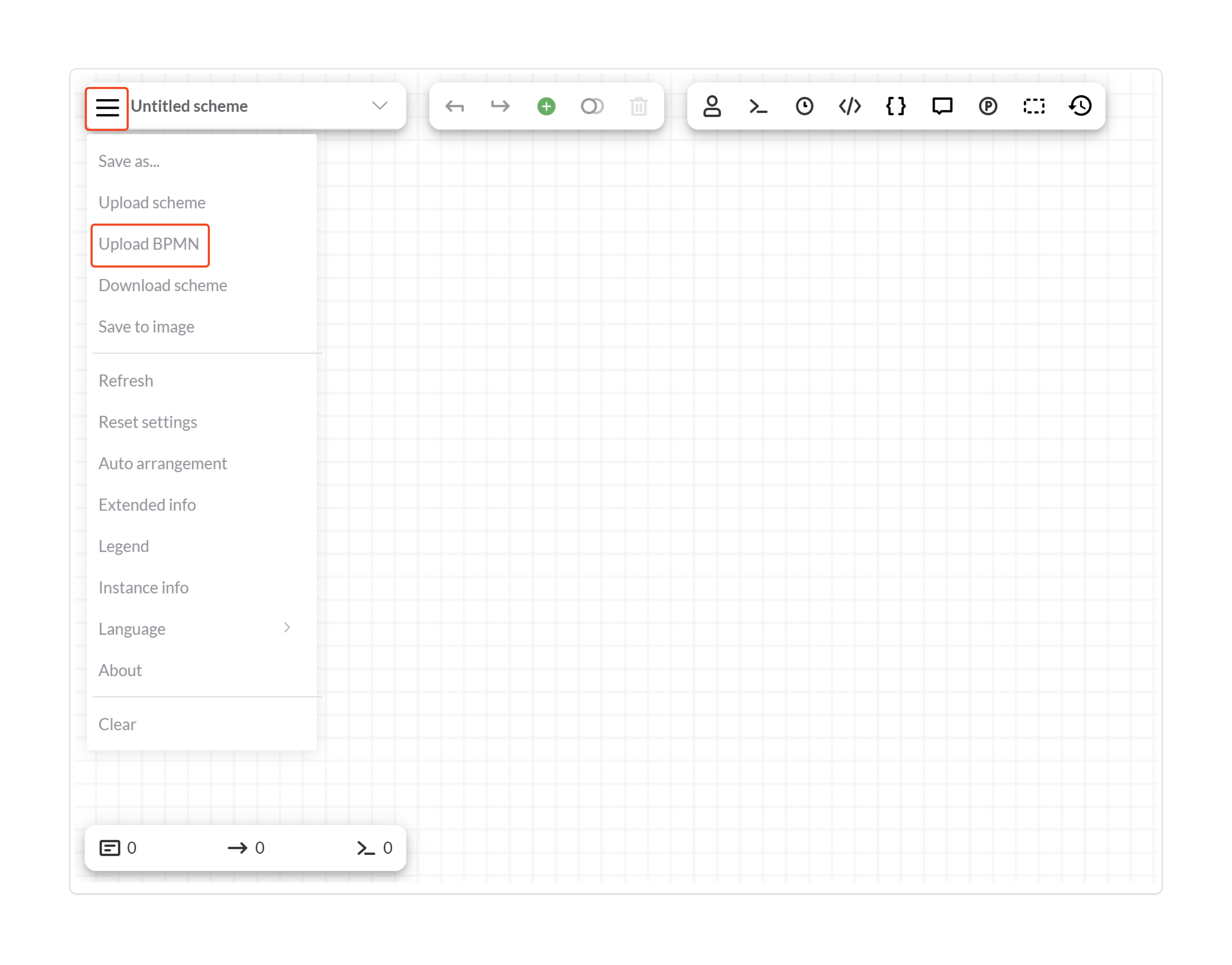
After selecting the file, the Designer opens the import settings dialog.
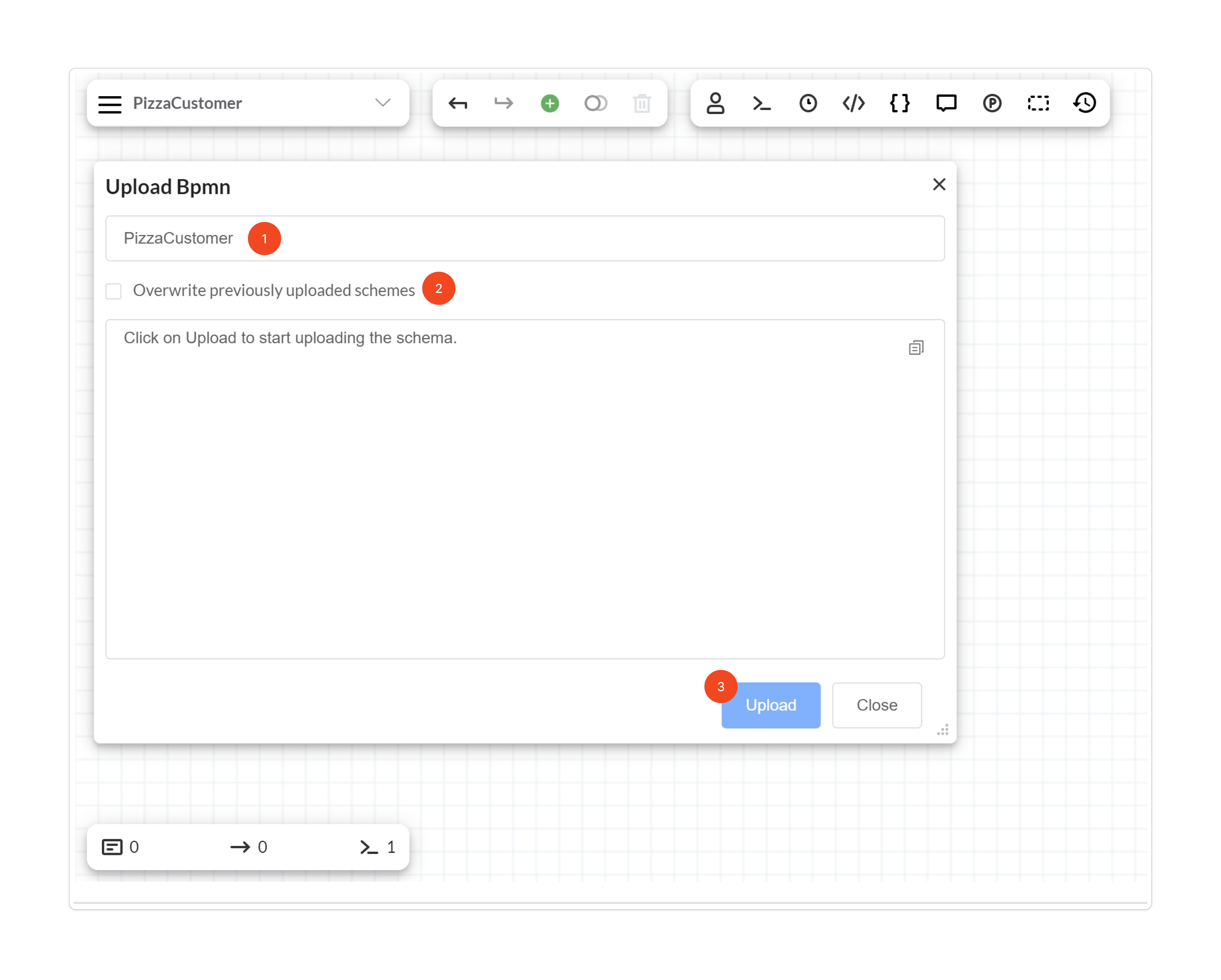
- Set Main Scheme Code. The field initially contains the code of the scheme currently open in the Designer. Keep it to import into that code, enter a new code, or clear it to derive the main code from the BPMN process name or ID.
- Set Overwrite previously uploaded schemes only when existing definitions should be replaced. The checkbox is unchecked by default. The policy applies to all converted schemes, including inline dependencies and other processes in the file.
- Click Upload. The server converts the document, saves eligible schemes, and displays a log.
- Read every conversion issue and save result. Use the copy button to copy the complete log for investigation or a support request.
- Click Rerender when offered to display the returned scheme. Otherwise click Close, then open the required saved scheme by code.
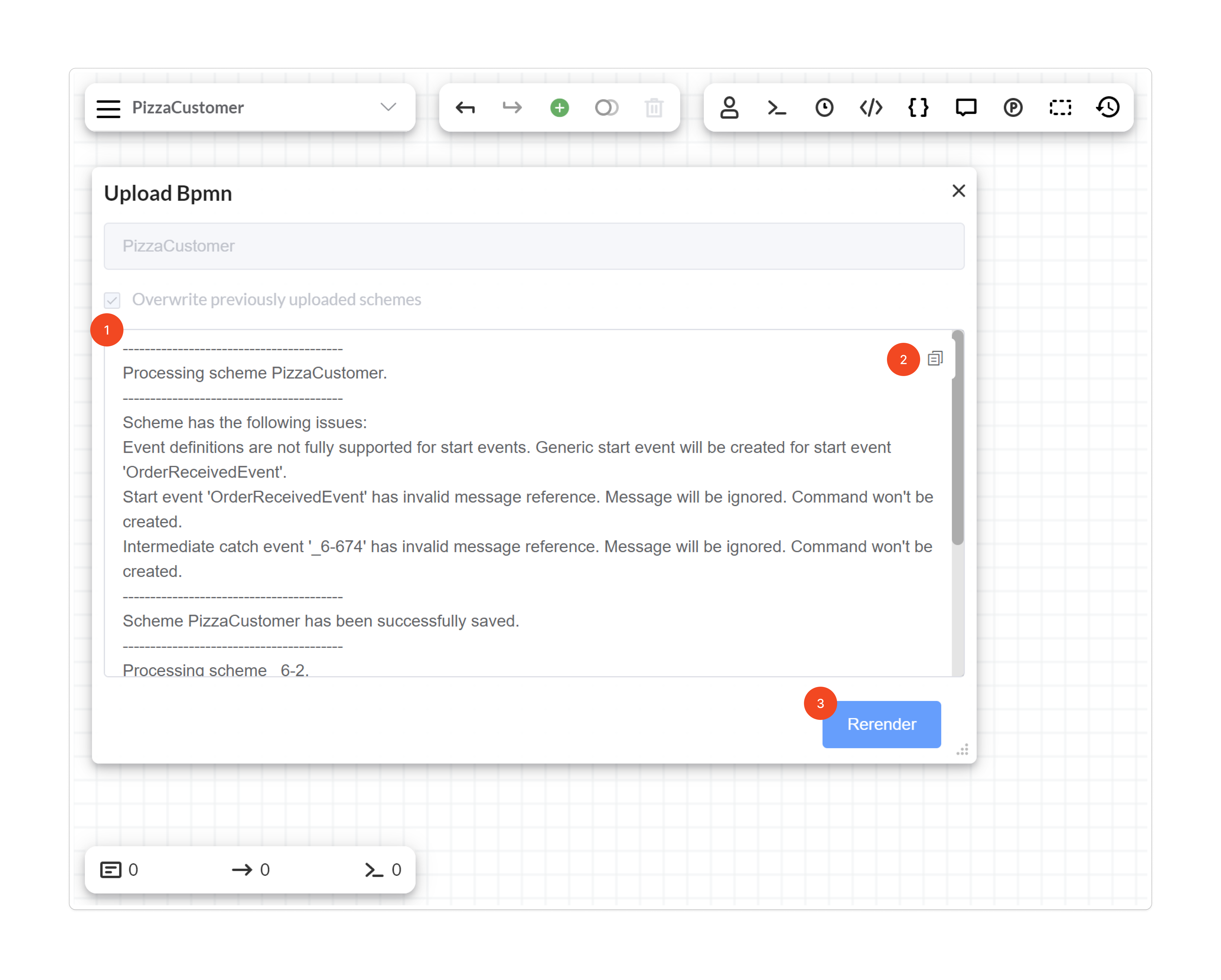
The dialog offers Rerender only when the server returns a successfully saved main scheme whose code matches the scheme currently open. A different code, a skipped or failed main save, or clearing Main Scheme Code can leave only Close even when other schemes were saved. Read the log rather than interpreting the button as the overall import result.
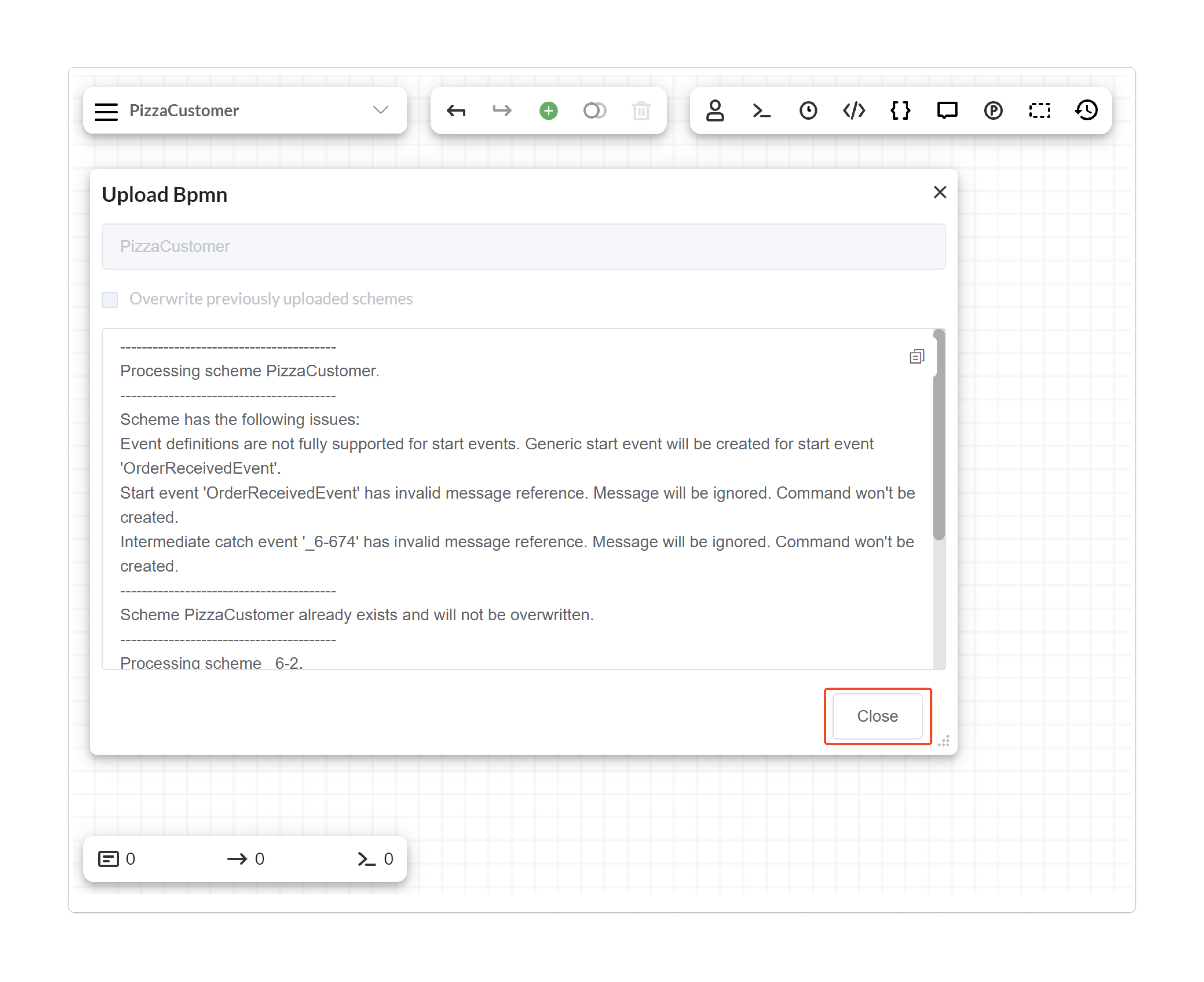
In this example, overwrite is disabled and the main scheme already exists. The importer skips that definition, so the dialog offers Close rather than replacing the open scheme.
The importer also places conversion warnings in comments on relevant activities and transitions. Review those comments when configuring the converted workflow; a successful save does not certify that unsupported BPMN semantics have been preserved.
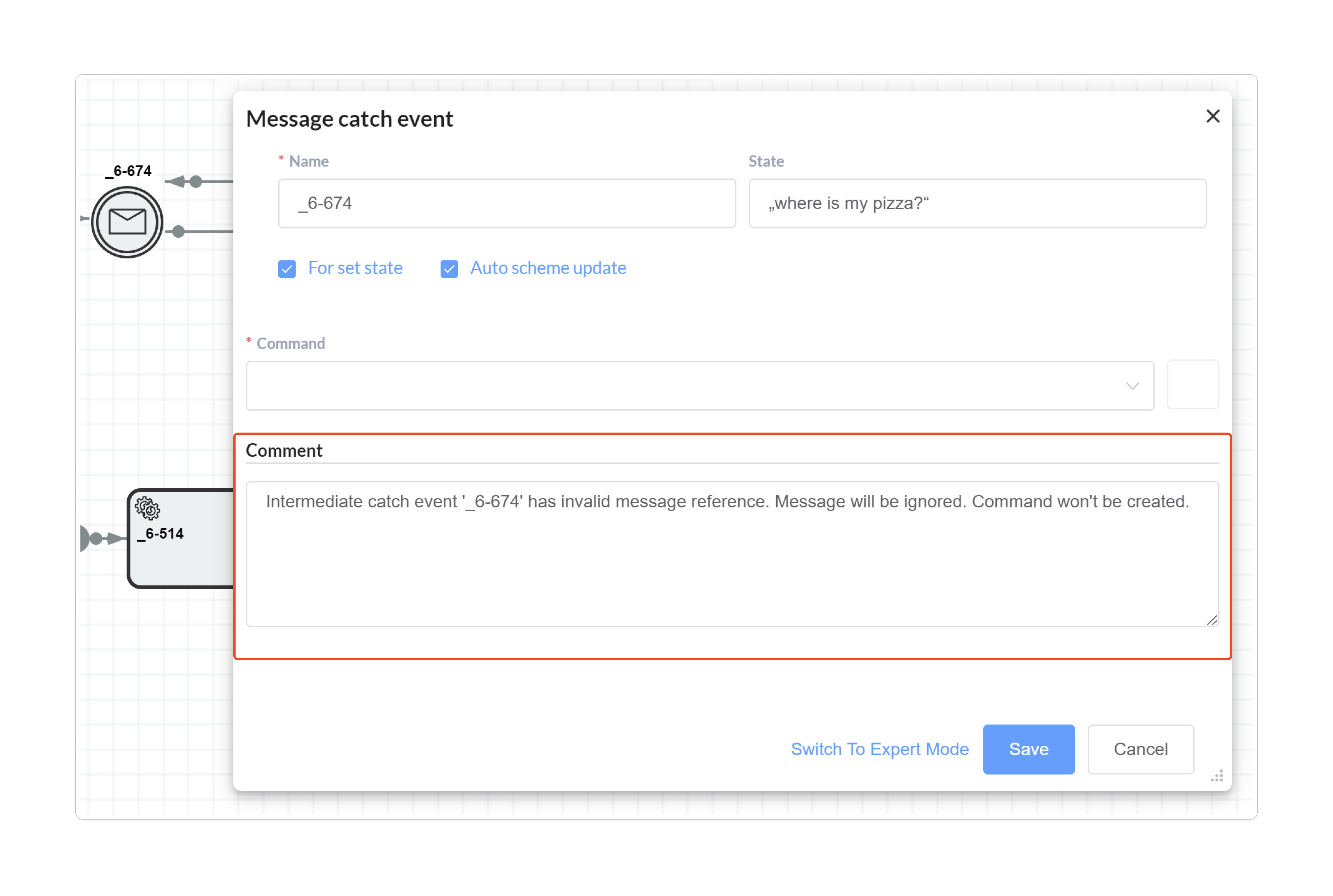
The message catch event in this example has an unresolved BPMN message reference. Its comment explains why the importer did not create the expected command, identifying the integration that must be corrected before the workflow can wait for that message.
Review saved schemes
BPMN import can produce several definitions from a single file. Each top-level BPMN process becomes a separate scheme; pools referring to separate processes therefore produce separate schemes too. Nonempty embedded subprocesses become additional inlineable schemes referenced by inline activities in their parents. Lanes are ignored.
| Definition | Derived code |
|---|---|
| First eligible non-inline top-level process | Main Scheme Code, when supplied; otherwise the normal process naming rule. |
| Other top-level process | BPMN process name, falling back to its ID. If top-level process names repeat, IDs distinguish those processes. |
| Embedded subprocess | BPMN subprocess name, falling back to its ID. |
Keep derived codes distinct, particularly subprocess names. The main-code override does not rename every converted definition, and duplicate dependency names can prevent the upload handler from ordering schemes for saving. The converter reads positions from the first BPMN diagram; it does not combine every diagram layout in the document.
Name-to-ID fallback treats only an absent (null) name as missing; names are not trimmed. An empty or whitespace-only name is retained unless the duplicate top-level-name rule selects IDs for those processes. A top-level process with neither a name nor an ID receives a generated GUID code. Supply nonblank, distinct names or IDs for processes and inline dependencies.
The upload handler saves inline dependencies before the schemes that reference them. It skips results marked DontSave and, unless overwrite is enabled, codes already stored in the request's tenant. It assigns that tenant to definitions before saving them through the runtime builder.
Saving is sequential, with a separate result for each scheme. The upload is not a batch transaction: earlier successful saves remain if a later scheme fails. A dependency skipped because it already exists may also leave a newly saved parent referencing that existing definition. Inspect all codes and save results together before executing the main workflow.
An exception can replace the accumulated log with an Import failed message and stack trace. Previously saved definitions still remain, so inspect stored scheme codes before retrying when the final log does not list every earlier save.
Import saves definitions; it does not create process instances. Reimport with overwrite replaces definitions rather than merging edits. Apply the application's normal running-scheme update policy when already-created instances must adopt changes.
Inspect conversion results
BpmnConverter.ConvertBpmnDocument also supports conversion without the Designer. It accepts a TextReader containing BPMN XML or an already deserialized TDefinitions, plus optional mainSchemeCode, and returns List<ConvertedProcess>. The converter itself does not save schemes, run the runtime builder's system steps, or start processes.
| Member | Meaning |
|---|---|
ProcessDefinition | Native definition produced by the converter; includes inline scheme references where required. |
Issues | Immutable list of conversion messages. Inspect each message before deciding whether to save. |
HasIssues | true when the issue list is nonempty. Warnings do not automatically prohibit saving. |
Hint | Optional hint with HintType and explanatory Message. |
DontSave | true when the hint type is ConvertedProcessHintType.DontSave, for example an empty top-level process. |
An empty result list is also possible when the document contains no top-level process elements. Applications using the converter directly must decide whether that is an acceptable input.
Customize BPMN Import supplies a complete C# preview program that prints codes, issue messages, and save hints without modifying storage. For application-managed saving, preserve dependency order, honor DontSave, set the tenant, and inspect the tuple returned by SaveProcessSchemeAsync: success, errors, and failedStep. Do not save every result blindly.
Connect application behavior
BPMN import preserves supported structure while application integration remains explicit. For example, a service task named ReserveStock can reference an action implemented by the host. If the integration waits for an external result, a message catch becomes a command wait; the host's message handler correlates the result to a process and executes that command.
Review the following behavior before running the imported scheme:
- Implement every referenced action and condition. Service task implementation strings name actions; importing them does not implement a REST call or worker.
- Add actors and rules to restrict user commands. User Task does not automatically create a form, approver list, or authorized command.
- Review timer values, clock interpretation, and unsupported timer cycles.
- Check transition classifiers and parallel creation/merge behavior against the intended workflow.
- Create a process instance through the host application. A message or timer start event waits inside that created instance; it does not register an external process-start subscription.
For user commands, retrieve the available commands for the current user with GetAvailableCommandsAsync, then select the requested command, fill its parameters, and execute it with ExecuteCommandAsync for the same user. Restrictions are checked during retrieval. To repeat the check during execution, use ExecuteCommandWithRestrictionCheckAsync or ExecuteCommandAsync with checkRestrictions: true.
If the host uses Workflow Engine Web API, BPMN upload travels through the Designer endpoint, by default POST /workflow-api/designer, and its bpmnplugin_uploadbpmn operation. Use the application's configured base and endpoint paths when they differ from these defaults. The API forwards form fields and the first uploaded file to the runtime's Designer API and applies its configured security and server tenant context. The POST operation ID is workflow-api.designer; the endpoint's configured authorization controls apply to that operation. There is no separate BPMN-specific REST operation group in the current production API. Configure and authorize the Designer endpoint rather than assuming a separate BPMN import service exists.
Diagnose import results
The BPMN import log distinguishes conversion warnings, skipped definitions, save failures, and conversion exceptions. Inspect it even when the Designer request succeeds: failures caught by the upload handler are returned in ResultLog, while the outer response still has hasError: false.
| Symptom | What to check |
|---|---|
| BPMN palette or Upload BPMN is missing | Confirm registration and license succeeded; reload the Designer with compatible frontend assets. |
| License does not include the Bpmn plugin | Obtain and register a license with the Bpmn capability before plugin registration. |
| Scheme already exists and will not be overwritten | Choose a new code or deliberately enable overwrite after reviewing the existing definition. |
| Only Close appears after upload | Check the saved codes and log; Rerender requires a returned scheme matching the currently open code. |
| Some schemes saved and another failed | Inspect errors and the failed build step; earlier saves remain. Review dependencies before retrying. |
| Split or merge building fails while parsing coordinates | Check that the BPMN export contains diagram coordinates for the affected activities, or assign integer Designer coordinates before programmatic saving. |
| Circular reference detected | Review inline dependency cycles and duplicate scheme codes. |
| Message became an automatic transition | Check the message reference and event definition; unsupported or invalid definitions generate warnings. |
| Multiple start events without event definitions are not supported | Reduce the process to one generic start or revise its start-event structure. |
| A recurring timer no longer waits | timeCycle is unsupported. Review the warning and implement the required scheduling behavior explicitly. |
| Visio or another modeler's file fails to import | Export actual BPMN 2.0 XML, then check the supported elements and vendor-specific extensions. |
Older Designer assets could produce ReferenceError: designer is not defined in the upload dialog. The published 21.1.2 release notes identify the Designer fix. If this exact historical error appears, update the Designer assets/packages used by the application.
Frequently asked questions
Which file format does BPMN Plugin import?
BPMN Plugin deserializes BPMN 2.0 XML, normally supplied as a .bpmn file. A modeling tool's proprietary document or an image of a process is not an equivalent input.
Why are there several saved schemes after one BPMN upload?
Top-level processes become separate schemes, and nonempty embedded subprocesses become inlineable dependency schemes. The Designer displays one main scheme at a time.
Can I inspect BPMN conversion without saving anything?
Yes. Call BpmnConverter.ConvertBpmnDocument and inspect each ConvertedProcess, including Issues, Hint, and DontSave. Saving and process creation are separate operations.
Does a successful upload mean the BPMN behavior is fully preserved?
No. Unsupported constructs can become ordinary activities or automatic transitions with warnings. Review those warnings and complete the host application's integration before execution.
Will a new BPMN import merge my Designer changes?
No. With overwrite disabled, existing codes are skipped; with overwrite enabled, definitions are replaced. Reconcile source BPMN and native scheme changes explicitly.