
Manage Directory Users and Groups

Active Directory Plugin exposes workflow actions, generated custom activities, transition conditions, and a public .NET API for LDAP user and group management. Configure a writable source with least-privilege credentials and verify writes against the directory. Use a transition condition or an independent directory read to confirm the requested state.
Active Directory Plugin lets a workflow create and delete LDAP users and groups, change direct group membership, and check the resulting directory state. This guide uses one verifiable example: add the user named by DirectoryUserName to the admin group, then continue only when a live LDAP condition confirms that direct membership.
Prerequisites:
- Configure LDAP Sources - register a source with the correct user and group search bases.
- Action - understand where a workflow activity runs plugin actions.
- A test directory or OU where the bind identity can create, modify, and delete objects.
Protect writable directories
Directory management actions write directly to the user and group locations configured for their LDAP source.
Use a dedicated writable OU, LDAPS, and a bind identity restricted to the required operations. Do not target synchronized objects in OU=AADDC Users in Microsoft Entra Domain Services; managed-domain writes do not change Microsoft Entra ID.
Configure a management action
A management action runs when Workflow Engine executes its containing activity. In this example, the action reads a process parameter and adds that directory user to a group selected from local-ldap.
- Add a string process parameter named
DirectoryUserName. UseTest Userwhile testing. - Open an activity and create an action implementation.
- Select
ActiveDirectoryAddUserToGroupas the action. - Set User name to
@DirectoryUserName. - Set Group name to
Group: admin | Source: local-ldap.
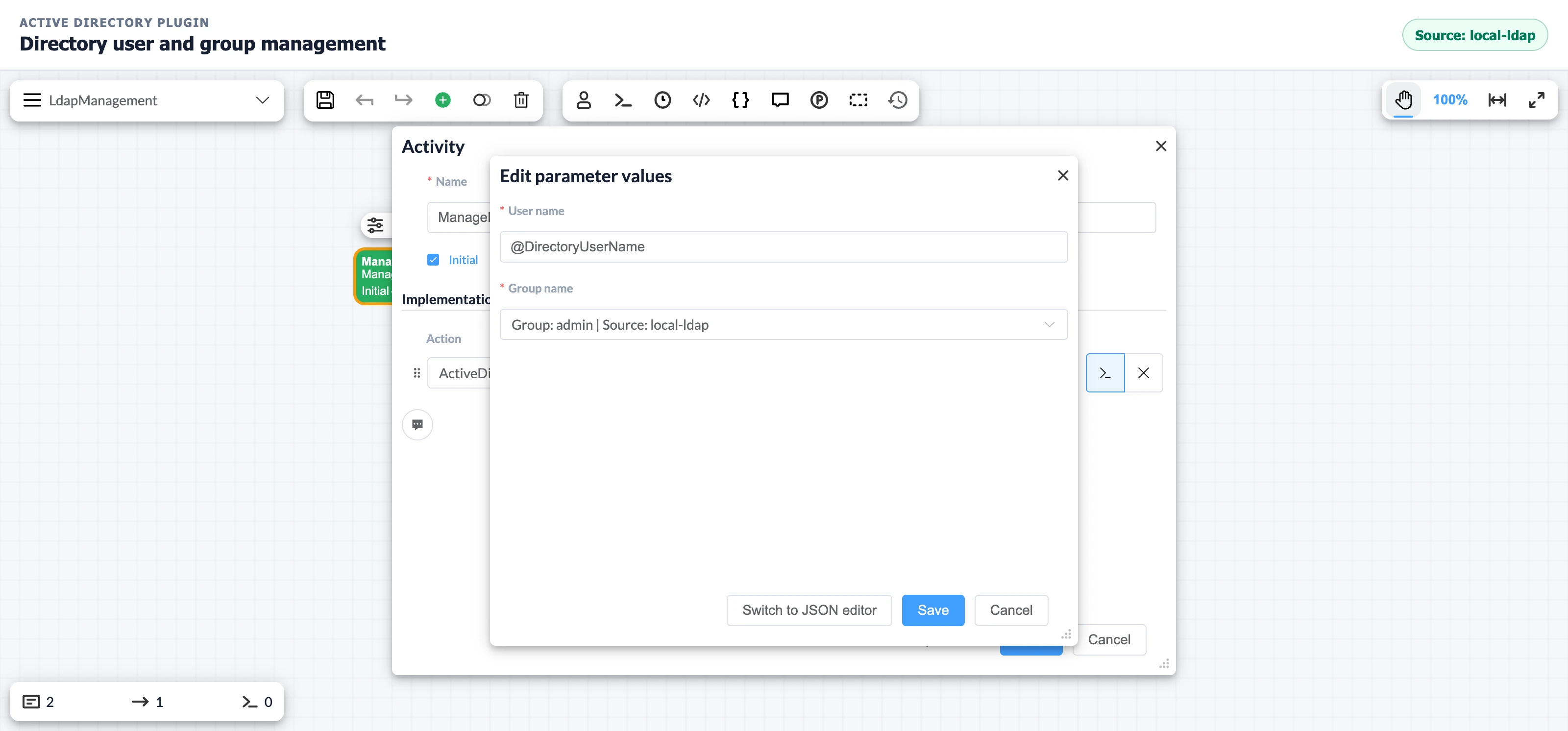
Text action fields accept @ParameterName substitutions. The group selector stores both the group and source, so the action can resolve admin in local-ldap without a separate source field.
Available management actions
Active Directory Plugin registers these management actions:
| Action | Required input | Result |
|---|---|---|
ActiveDirectoryCreateUser | User name and source; configured user attributes are optional | Creates a user in the source's user location |
ActiveDirectoryDeleteUser | User name and source | Deletes the matching user if it exists |
ActiveDirectoryCreateGroup | Group name, source, and user names; configured group attributes are optional | Creates a group and adds every member that resolves |
ActiveDirectoryDeleteGroup | Group name and source | Deletes the matching group if it exists |
ActiveDirectoryAddUserToGroup | User name and selected group | Adds the user as a direct group member |
ActiveDirectoryRemoveUserFromGroup | User name and selected group | Removes the direct group membership |
ActiveDirectoryCreateGroup separates user names at commas but does not trim them. Enter Alice,Bob, not Alice, Bob. Attributes enabled in the LDAP source appear as optional Designer fields for the corresponding create action.
ActiveDirectoryCreateUser creates the directory object and writes configured attributes. It does not set an AD DS password or enable the account. Complete those steps outside Active Directory Plugin before treating the account as login-ready. See Microsoft's user creation behavior.
Delete actions make no change when an object is absent. Membership actions make no change when the user or group cannot be resolved, and group creation skips unresolved members. These outcomes do not prove that the requested state exists, so check the directory after an important write.
Use generated custom activities
When plugin registration enables custom activities, the Designer Activities palette contains one activity for each management action. Filter the palette by ActiveDirectory to find all six types.
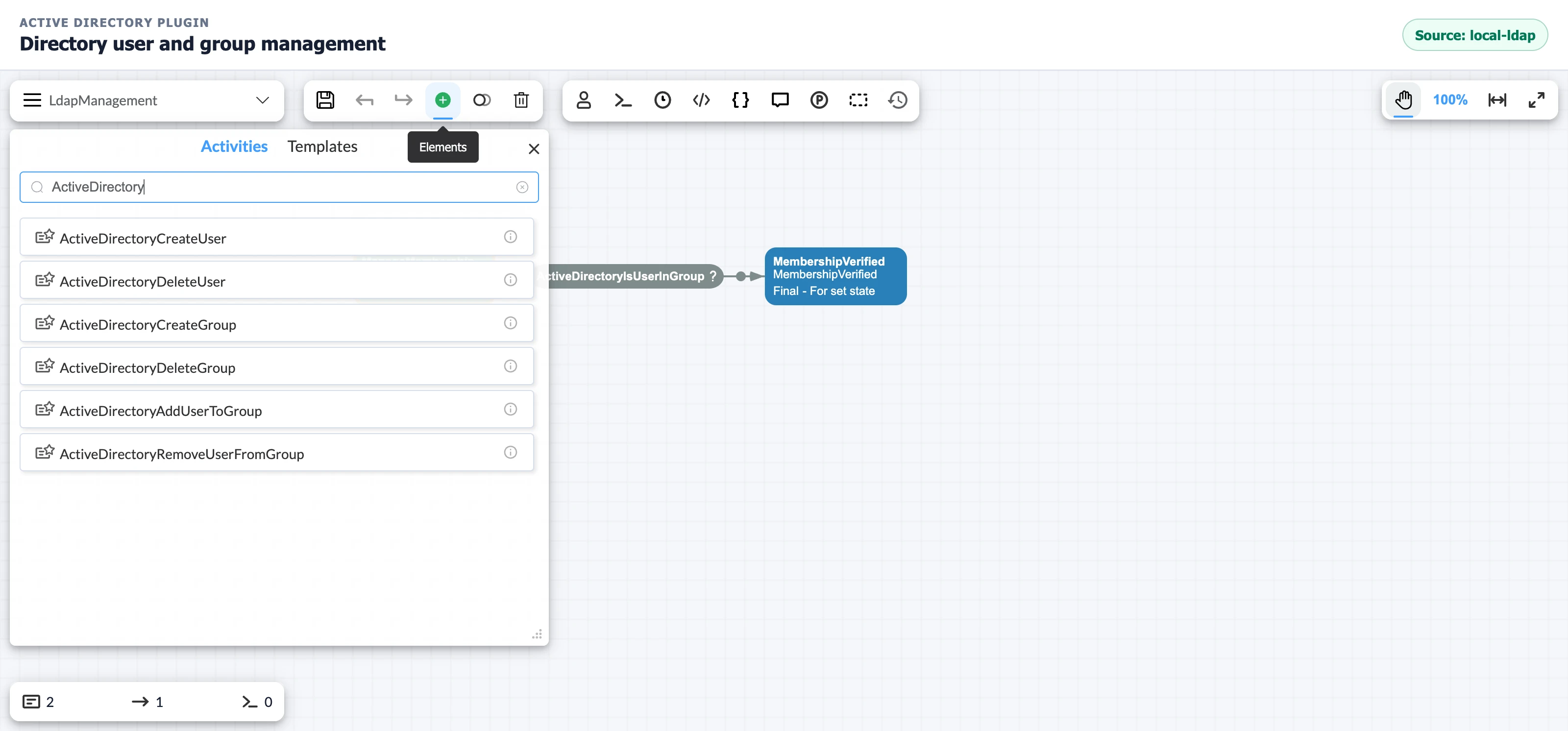
Use a generated custom activity when one directory operation is the activity's main purpose. Use an ordinary activity implementation when the directory action must run with other actions. Both options execute the same operation and expose the same parameters.
Branch on directory state
A transition condition can read LDAP immediately after a management activity and decide whether the process continues. For the running example, make the transition conditional, select ActiveDirectoryIsUserInGroup, and enter the same user and group values as the add action.
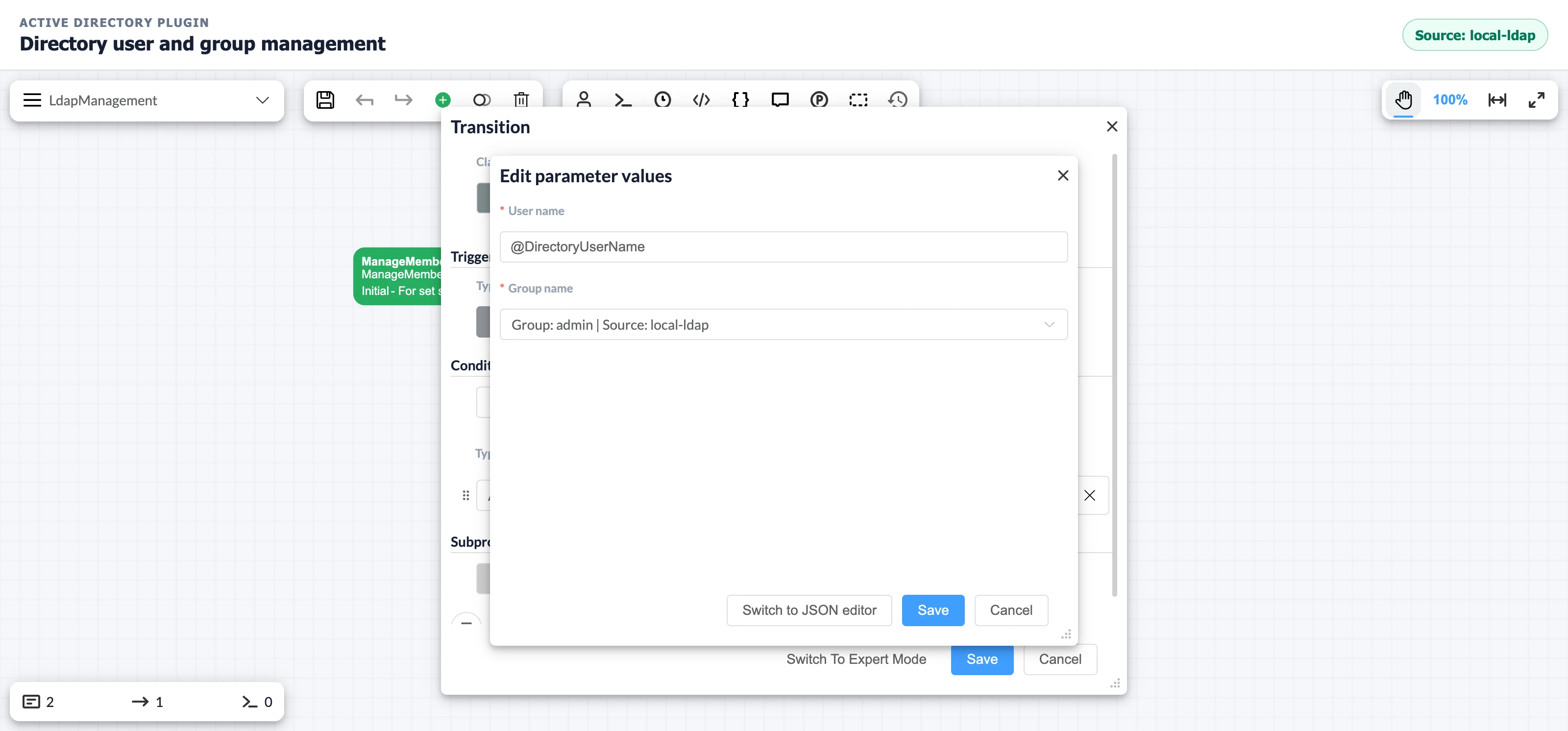
Active Directory Plugin provides three directory conditions:
ActiveDirectoryIsUserInGroupreturnstruewhen the selected group directly contains the named user.ActiveDirectoryIsUserExistsreturnstruewhen the selected source contains the named user.ActiveDirectoryIsGroupExistsreturnstruewhen the selected source contains the named group.
Each condition performs a live LDAP read. Active Directory Plugin does not cache condition results between evaluations or expand nested group membership.
Review the complete process
The LdapManagement process runs ActiveDirectoryAddUserToGroup in ManageMembership. Its automatic transition calls ActiveDirectoryIsUserInGroup and reaches MembershipVerified only when Test User is a direct member of admin in local-ldap.
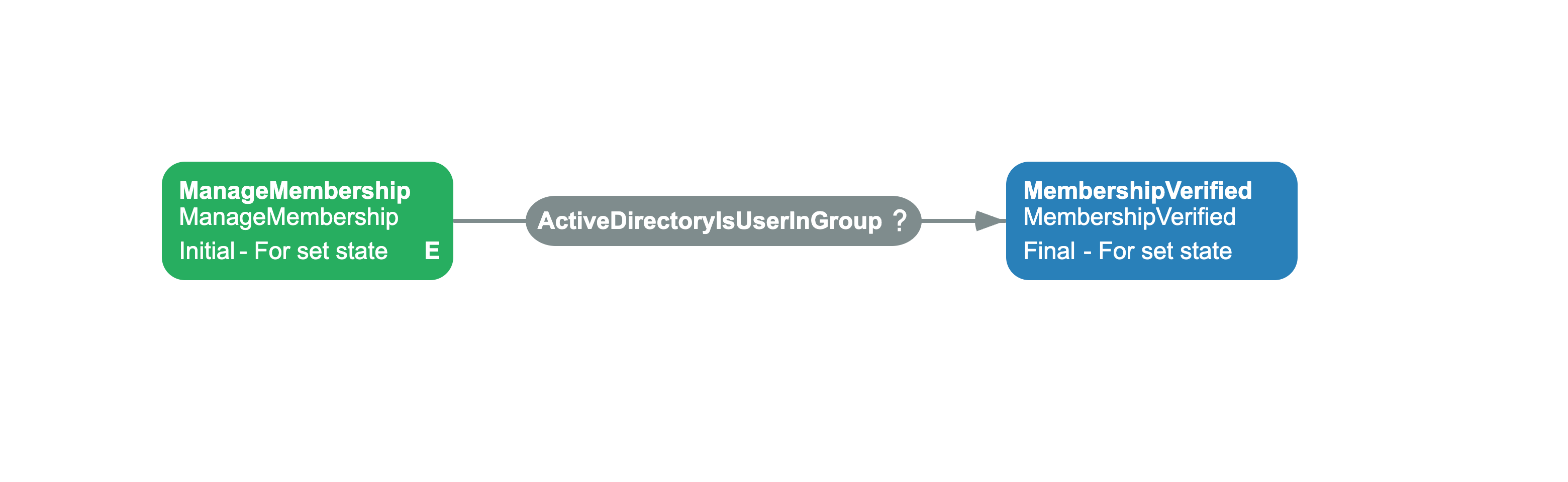
Complete process scheme XML
<Process Name="LdapManagement" CanBeInlined="false" Tags="" LogEnabled="false"> <Designer /> <Actors /> <Parameters> <Parameter Name="DirectoryUserName" Type="String" Purpose="Persistence" InitialValue="Test User" /> </Parameters> <Commands /> <Activities> <Activity Name="ManageMembership" State="ManageMembership" IsInitial="true" IsFinal="false" IsForSetState="true" IsAutoSchemeUpdate="true"> <Implementation> <ActionRef Order="1" NameRef="ActiveDirectoryAddUserToGroup"> <ActionParameter><![CDATA[{"UserName":"@DirectoryUserName","GroupName":"Group: admin | Source: local-ldap"}]]></ActionParameter> </ActionRef> </Implementation> <Designer X="360" Y="180" Hidden="false" /> </Activity> <Activity Name="MembershipVerified" State="MembershipVerified" IsInitial="false" IsFinal="true" IsForSetState="true" IsAutoSchemeUpdate="true"> <Designer X="780" Y="180" Hidden="false" /> </Activity> </Activities> <Transitions> <Transition Name="VerifyMembership" To="MembershipVerified" From="ManageMembership" Classifier="NotSpecified" AllowConcatenationType="And" RestrictConcatenationType="And" ConditionsConcatenationType="And" DisableParentStateControl="false"> <Triggers> <Trigger Type="Auto" /> </Triggers> <Conditions> <Condition Type="Action" NameRef="ActiveDirectoryIsUserInGroup" ConditionInversion="false"> <ActionParameter><![CDATA[{"UserName":"@DirectoryUserName","GroupName":"Group: admin | Source: local-ldap"}]]></ActionParameter> </Condition> </Conditions> <Designer Hidden="false" /> </Transition> </Transitions></Process>Call the public .NET API
The public ActiveDirectoryMethods field exposes the configured IActiveDirectoryMethods implementation. Application code can use the same source definitions without adding an action to a workflow scheme.
using OptimaJet.Workflow.Plugins.ActiveDirectoryPlugin;public static class DirectoryGroupReader{ public static IReadOnlyList<string> GetDirectMemberNames( ActiveDirectoryPlugin plugin, string sourceName, string groupName) { return plugin.ActiveDirectoryMethods .GetAllUsersInGroup(groupName, sourceName) .Select(user => user.Name) .ToList(); }}The API reference lists the complete read, write, membership, and source-inspection contract. The methods are synchronous, and directory client exceptions propagate to the caller. Active Directory Plugin does not expose these methods through Workflow Engine Web API.
Verify a management workflow
The example succeeds when both the process state and the LDAP state show the requested direct membership.
- Before the test, confirm that
Test Useris not a direct member ofadmininlocal-ldap. - Start the process with
DirectoryUserNameset toTest User. - Confirm that the process reaches the activity after the
ActiveDirectoryIsUserInGrouptransition. - Inspect
adminwith an LDAP administration tool or the public .NET API and confirm thatTest Useris a direct member.
Run destructive create and delete tests only in a non-production OU with uniquely named test objects. Use the same LDAP implementation as production when testing directory-specific schema behavior.
Troubleshoot directory operations
Directory operation failures usually identify a mismatch between the action input, LDAP source configuration, and target directory permissions.
| Symptom | Likely cause | Fix |
|---|---|---|
| A create action reports a required-attribute error | The directory schema requires an attribute absent from the source configuration | Configure the attribute and provide its value in the action |
| The second user in a new group is not found | The user list contains a space after the comma | Enter exact names separated by commas without padding |
| An action reads but cannot write | The bind identity is read-only or the target OU is managed | Select a writable OU and grant only the required write rights |
| A membership transition does not run | The user or group name does not match the configured common-name attribute | Verify both names and the source selected with the group |
Frequently asked questions
Can Active Directory Plugin action fields use workflow parameters?
Yes. Text fields accept substitutions such as @DirectoryUserName. The process parameter value is resolved when Workflow Engine executes the action or condition.
Do Active Directory Plugin actions change Microsoft Entra ID?
No. Writes to Microsoft Entra Domain Services do not synchronize back to Microsoft Entra ID. Use a Microsoft Entra management API when Microsoft Entra ID is the system of record.
What is the difference between a directory action and a generated custom activity?
A directory action can run with other actions in an ordinary activity. A generated custom activity wraps the same single operation as a dedicated Designer activity type.
Can application code manage the directory without a workflow action?
Yes. Application code can call ActiveDirectoryPlugin.ActiveDirectoryMethods directly with the same provider and source configuration used by the plugin actions and conditions.